Create your Qoorbell account and your first doorbell
Where to sign up, which sign-in methods work in your country, and how the setup wizard turns a door, a car or a building into a QR doorbell.
A Qoorbell doorbell is a QR code that rings your phone. To make one you need a free account and about a minute. This guide walks through the sign-up, the setup wizard and the first things worth checking before you print the poster.
Where to sign up
You can use Qoorbell in three places, and the same account works in all of them:
- In any web browser at app.qoorbell.com. Nothing to install.
- On Android phones and tablets, with the Qoorbell app from Google Play.
- On iPhone and iPad, with the Qoorbell app from the App Store.
On the web you can even build the doorbell before you have an account: the setup page says “No account needed yet. You’ll save it at the end.” You create the account at the last step, so nothing you typed is lost.
Which sign-in methods you can use
- Continue with Google, Apple or Microsoft: one tap, no new password.
- Your email address: Qoorbell sends you a one-time code, you type it in, and you are in.
- Depending on the version you use, other accounts may be offered on the same screen.
Signing in with a phone number and an SMS code is only available in the Dominican Republic for now. Anywhere else the app says “Phone sign-in is not available in your country yet. Use your email instead.” Your email works everywhere.
The setup wizard
After signing in, create a doorbell. The wizard asks one question first — “What is this doorbell for?” — and the answer decides what gets created:
- Just one door: a house, an apartment, a business, a pet or a package drop-off spot. One QR; whoever scans it reaches you.
- A vehicle: a QR behind the windshield, so someone who needs you to move your car can reach you without seeing your number.
- A building with several doors: one QR at the entrance, and visitors pick the door to ring.
- A complex with several buildings: one QR at the gate; visitors pick the building, then the door.
Next you give it a name and an icon. Visitors see the name when they scan the QR, so use something they will recognise, such as “The Millers”, “Apt 3B” or “Dental office”. You can also add a short note for visitors, shown under the name.
An optional step called “How visitors reach you” lets you choose video call, chat or both. The same step has two stricter options — visitors must sign in to ring, and visitors must be at the door — which come with the Pro, Premium and Enterprise plans. The defaults work for most homes, and every setting can be changed later.
Review the summary, tap Create, and the wizard ends with “Your doorbell is ready”. From there you go straight to the poster.
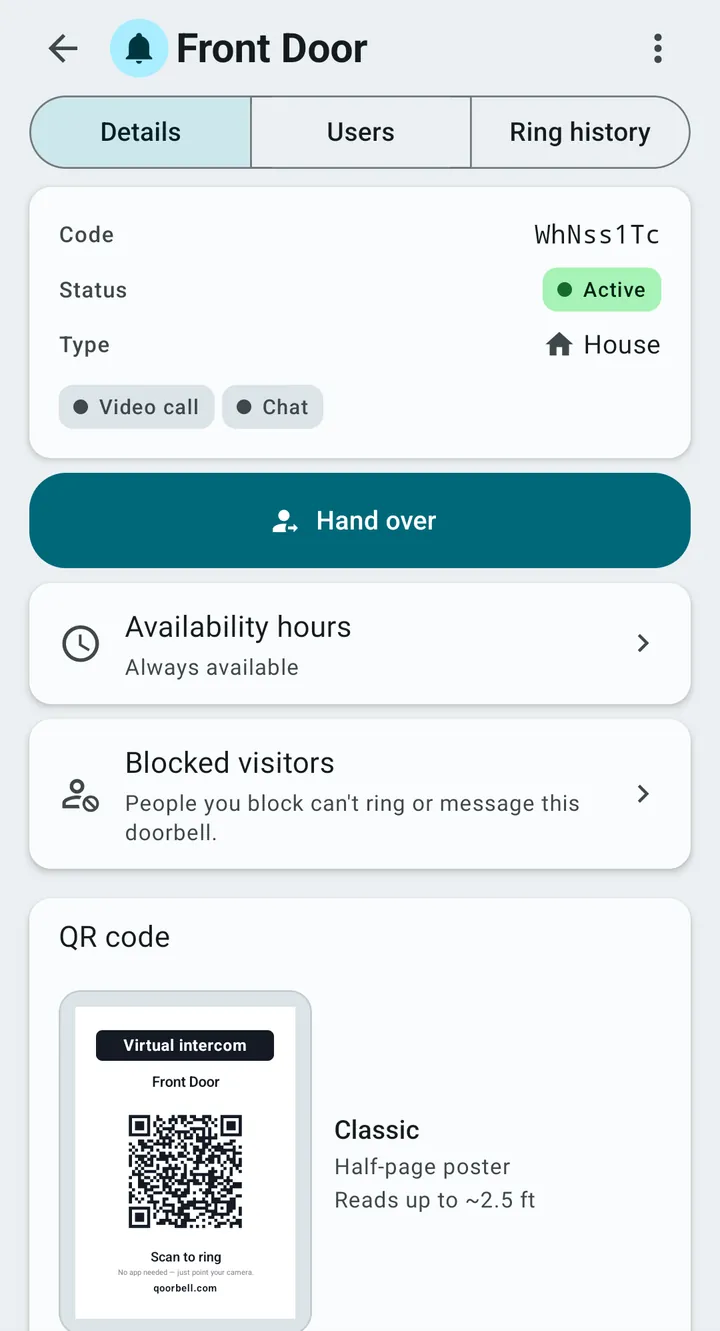
Check the doorbell type
Every doorbell has a type, and new ones are a House unless you say otherwise. The ten types are House, Apartment, Office, Business, Vehicle, Pet, Item, Rental, Front desk and Deliveries. The type changes what the poster says and how the visitor’s page greets people: a rental says “Reach your host”, a deliveries doorbell says “Announce the delivery”. A vehicle, a pet or an item can never ask visitors to be at a fixed location, because they move.
How many doorbells you can have
Every plan, the free one included, comes with unlimited doorbells, unlimited people per doorbell and unlimited rings. The plans differ in call length, history, ads and a few advanced features; see Plans, payment and cancellation.
Next step: print and place your QR poster. Scan it with another phone before you stick it up.