QR Code Not Scanning? 10 Fixes for a Printed Code That Fails
By Qoorbell Team
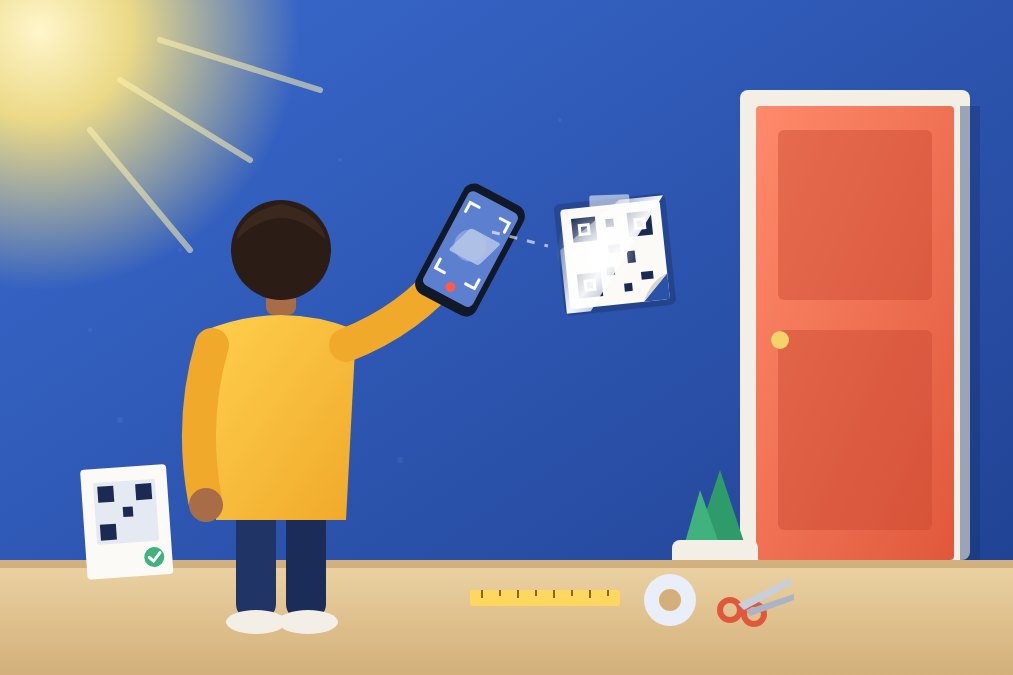
A QR code that is not scanning almost always has one of four problems: the phone, the print, the place where it hangs or the link inside it. Test it with a second phone to find which one, then fix that cause: more contrast, a white margin, a bigger size, a matte finish or a working link.
This guide is for the person who made the code: the sign on your door, the poster in your shop window, the sticker on a box. You will learn how to tell in one minute where the problem is, the 10 fixes that solve most failures, and how to test a code before anyone else has to struggle with it.
First, find out what is failing
Before you reprint anything, run a quick test. It saves paper and guesswork.
- Try a second phone. If another phone reads the code and yours does not, the problem is your phone, not the code.
- Take a photo of the code and scan the photo. If the photo reads on a screen but the real code does not, the print or the place is to blame: light, glare, angle or distance.
- Watch what happens after the scan. If the phone shows a link but the page never loads, or shows an error, the code is fine and the link is the problem.
- Try it in good light, close up and straight on. If nothing reads it even then, the code itself is badly made or damaged.
Why a QR code is not scanning: 10 fixes
These are the causes behind most printed codes that refuse to work, roughly from the most common to the least.
- Not enough contrast. Cameras look for dark squares on a light background. Pale grey, yellow, pastel colours or a gradient across the code make that hard. Print the squares in plain black, or another very dark colour, on white.
- Inverted colours. A light code on a dark background looks stylish, but many scanners expect the opposite and simply ignore it. If you want a dark design, put the code on a white panel inside it.
- No white margin. A code needs an empty border around it, called the quiet zone, so the camera can see where it starts. Do not crop it to the edge, frame it tightly or print text right up against it. Keep at least a margin about as wide as four of the small squares.
- Too small for the distance. A simple rule: a code reads from about ten times its width. A 5 cm (2 in) code works from half a metre; a 10 cm (4 in) code from about a metre (3 ft). For a gate or a window seen from the street, print it much bigger.
- Printed at the wrong scale or from a blurry file. "Fit to page" quietly shrinks or stretches the code, and a screenshot printed big turns sharp squares into soft blobs. Print the original file at 100%, or "actual size".
- Glare. Glossy paper, a shiny laminating pouch or direct sun bounce light straight into the camera and wash out part of the code. A matte finish and a spot in the shade read far better.
- A curved, wrinkled or angled surface. Codes on a bottle, a pole or a wavy sticker bend the squares. Stick the code on a flat, smooth surface that faces the person scanning: past about 45 degrees, many cameras give up.
- Behind glass. Codes in a window or a glass door work, but reflections can take several tries. Place them low on the pane, away from the sun. If you print on clear film for the inside of the glass, print it mirrored so it reads correctly from outside.
- Dirt, fading or damage. QR codes have built-in error correction, so a scratch or a little dirt is usually fine. But a torn corner, faded ink or a sticker over part of it can push it past its limit. Wipe it, and reprint it when it looks worn.
- Too much packed in. A code that holds a very long link, a whole paragraph of text or a big logo in the middle has tiny, crowded squares. Use a shorter link, a smaller logo or no logo, and print it larger.
When it scans but nothing opens
Sometimes the camera reads the code perfectly and the trouble starts after. Then the problem is the link, and reprinting the same code will not help.
- A typo in the address. Open the link yourself and check it lands on the right page, on a phone, not only on a computer.
- A code that expired. Some generators create codes that pass through their own servers and stop working when a free trial or subscription ends. If an old code suddenly fails, check where its link points.
- No signal where it hangs. A phone can read a code offline, but it needs internet to open a web page. In a basement or a remote gate, ask someone to test it on mobile data.
- A code that was replaced. If you created a new code for the same thing, the old printed copies may no longer work. Take them down so nobody scans a dead one.
If the problem is your own phone
When other phones read the code and yours does not, the fix is quick: clean the lens, tap the screen to focus, hold the phone steady a little further away and check that QR scanning is turned on in the camera settings. Our step-by-step guide on how to scan a QR code with your phone covers Android, iPhone and older phones in detail.
How to test a QR code before you stick it up
Most failures are found in two minutes, before the code is on the wall.
- Scan the printed code with at least two different phones, ideally one Android and one iPhone.
- Test it in place, in the real light, at the time of day people will use it.
- Stand where a visitor will stand, not where you are, and scan from there.
- Open the link to the end and check the page works on mobile data, not just your Wi-Fi.
- Look at it again after a few weeks of sun and rain, and reprint it before it fades.
If you still need to make the code itself, our guide on how to create a free QR code explains the options.
A QR code doorbell made to scan
If your code is meant for the front door, Qoorbell already takes care of most of this list. Each doorbell gets its own QR code, and visitors scan it with the phone camera: a web page opens, with no app to download, and they can ring you by video call or chat while you answer on your phone from anywhere.
The poster Qoorbell gives you is built to read well. The PDF and PNG files are 300 dpi, the code carries maximum error correction (level H), so it still reads with about 30% of it damaged or dirty, and you can print corner marks and a ruler to check that the size came out right. The app also gives placement tips, like keeping the code at chest height, out of direct sun and on a flat surface.
And if your door sign is ever damaged or torn down, you can print a fresh copy from your account for free. There is no hardware to replace.
What to keep in mind
- No code reads in every condition. Very dim light, heavy rain on the plastic or a strong reflection can defeat any printed code. A covered, shaded spot helps more than any trick.
- Some phones are simply old. A visitor with a very old phone may need a scanner app. You cannot fix that from your side, so a short line like "Scan with your phone camera" next to the code helps.
- Paper is not forever. Clear tape and cheap pouches yellow and peel outdoors. For a long-term sign, use vinyl or a plate made by a print shop.
- A good scan needs a good link. Qoorbell only helps with a doorbell code. A menu, a Wi-Fi code or a payment code will still depend on the service behind it.
Frequently asked questions
Why does my QR code scan on one phone but not another?
Phones have different cameras and scanners. A code with low contrast, inverted colours or a tight margin may be read by one and not the other. Fix the code, and every phone will usually read it.
Can a colourful QR code work?
Yes, if the squares are much darker than the background and the background is light. Avoid pale colours, gradients and light-on-dark designs.
How big should a printed QR code be?
About one tenth of the scanning distance: 5 cm (2 in) for half a metre, 10 cm (4 in) for a metre. Go bigger when people will scan from further away.
Does the person scanning a Qoorbell code need an app?
No. They point the phone camera at the code and a web page opens. Only you, the owner, use the Qoorbell app or website.
Fix it once, then forget it
Most QR codes that will not scan fail for a simple reason: low contrast, no margin, the wrong size, glare or a broken link. Find the cause with a second phone, fix that one thing and test it where it hangs. And if the code is for your door, create your free QR doorbell and print a code that is made to scan.
- QR code not scanning
- QR code problems
- printing QR codes
- QR doorbell