- scan QR code
- QR code
- Android
- iPhone
How to Scan a QR Code with Your Phone (Android and iPhone), Step by Step
By Qoorbell Team
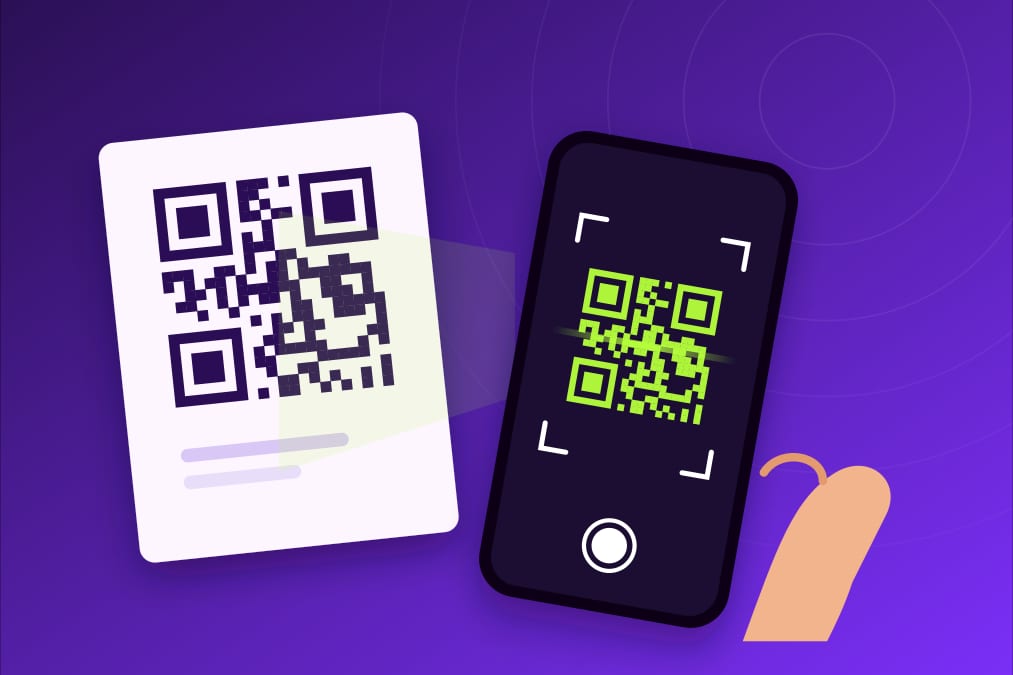
QR codes are everywhere: restaurant menus, parking meters, product boxes, event tickets, posters and even front doors. Most people have scanned one at some point, but many still are not sure how to do it on their own phone, or give up when the code does not react. The good news is that almost every phone sold in recent years can read a QR code with the camera it already has, without installing anything.
This guide explains how to scan a QR code on Android and on iPhone, what to do with an older phone, how to fix the most common problems and how to stay safe while doing it.
Before you start: what you need
- A phone with a camera and, in most cases, an internet connection, because most QR codes open a web page.
- Enough light to see the code clearly.
- A few seconds of patience: hold the phone steady and let the camera focus.
How to scan a QR code on Android
With the camera app
- Open the camera app, as if you were going to take a photo.
- Point it at the QR code so the whole square fits on the screen.
- Wait a second or two. A link or a small banner appears on the screen.
- Tap it to open the content.
On most recent Android phones this works out of the box. If nothing happens, open the camera settings and look for an option called something like "Scan QR codes" or "Google Lens suggestions" and turn it on. The exact name changes from one brand to another.
With Google Lens
If your camera does not react, Google Lens is the next step. You can open it from the Lens icon in the Google search bar, from the Google app or, on many phones, from the camera itself. Point it at the code and tap the link that appears. Lens can also read a QR code from a photo or a screenshot already saved in your gallery.
From the quick settings panel
Many Android phones include a "Scan QR code" shortcut in the quick settings panel, the menu you open by swiping down from the top of the screen. If you do not see it, tap the edit (pencil) icon and add it.
How to scan a QR code on iPhone
With the Camera app
- Open the Camera app and use the rear camera.
- Point it at the QR code and hold the phone steady.
- A yellow link appears on the screen.
- Tap it to open the content.
If nothing appears, go to Settings, then Camera, and check that the option to scan QR codes is turned on.
From Control Center
The iPhone also has a dedicated "Code Scanner". Open Control Center and look for the QR code icon. If it is not there, you can add it from the Control Center settings. It is handy when you scan codes often, because it opens directly in scanner mode.
From a photo or screenshot
If someone sends you a QR code in an image, open it in the Photos app. On recent versions of iOS you can touch and hold the code, or tap the visual look up icon, to open its link.
What if my phone is older?
Very old phones may not read QR codes with the camera. In that case, check first whether a system update is available, because it may add the feature. If not, the Google app with Lens usually works on Android, and a scanner app from the official store can help on any phone. Choose a well-known app with good reviews, and be wary of scanners that ask for permissions they do not need, such as access to your contacts.
The code will not scan: quick fixes
- Clean the lens: a fingerprint on the camera is the most common cause.
- Change the distance: move a little closer or further away until the whole code fits on the screen with some space around it.
- Tap to focus: touch the code on the screen so the camera focuses on it.
- Improve the light: avoid strong reflections on glossy paper or glass. In the dark, turn on the flashlight.
- Straighten the angle: point the phone straight at the code rather than from the side.
- Damaged codes: a code that is torn, faded or partially covered may not work. QR codes tolerate some damage, but not too much. Try another copy, or ask the owner of the code for a new one.
- Codes on screens: lower the brightness of the other screen if it creates glare, or zoom in a little.
Safety tips: check before you tap
A QR code is just a shortcut to a link, and some people take advantage of that. Fake QR stickers placed over real ones on parking meters or posters, or codes sent in suspicious messages, can lead to pages designed to steal data or money. This is often called "quishing", or QR phishing.
- Read the address before opening it. Your phone shows the link first. If the domain looks strange or misspelled, do not open it.
- Look for stickers on top of other codes, especially in public places where you pay.
- Do not type passwords or card details on a page you reached from an unknown QR code. Open the official app or type the address yourself instead.
- Be wary of urgency: a code that promises a prize or warns of a fine "if you do not pay now" deserves extra suspicion.
- Keep your phone updated to have the latest security protections.
Want to make your own QR code?
Scanning is only half the story. If you want to create a QR code for your business, your Wi-Fi or your home, read our guide on how to create a free QR code.
Frequently asked questions
Do I need to install an app to scan a QR code?
Usually not. Most recent Android phones and iPhones read QR codes with the camera app. On older phones, Google Lens or a scanner app from the official store does the job.
Can I scan a QR code without internet?
The phone can read the code without internet, but if the code contains a web link, you need a connection to open the page.
How do I scan a QR code that is on my own screen?
Take a screenshot and open it with Google Lens on Android, or in the Photos app on iPhone.
Is it safe to scan any QR code?
Scanning alone does not open anything. The risk is in the link: check the address before tapping and do not enter personal data on pages you do not trust.
This is how visitors ring a Qoorbell doorbell
Now that you know how to scan, you already know how to use a QR doorbell. With Qoorbell, the visitor scans the code at the door with their phone camera and starts a video call or a chat with the owner. They do not need to install any app, and the owner's phone number stays hidden. The owner answers from their phone wherever they are. Create your free QR doorbell and let visitors reach you with the same scan you just learned.