- QR code
- free QR code generator
- how to
- virtual doorbell
How to Create a Free QR Code (and Turn It Into Your Doorbell)
By Qoorbell Team
QR codes are everywhere: restaurant menus, parking meters, Wi-Fi in cafés, business cards. The good news is that making your own costs nothing and takes less than a minute. The bad news is that many "free" generators are not free at all: the code stops working after 14 days unless you pay a subscription.
This guide shows you how to create a QR code that is genuinely free and never expires, how to make it scan reliably once it is printed, and one use most people have never thought of: turning a QR code into the doorbell of your home.
What a QR code actually is
A QR (Quick Response) code is a square barcode that stores a small piece of text — most often a web address. When someone points their phone camera at it, the phone reads that text and offers to open it. Every modern iPhone and Android phone can scan QR codes straight from the camera app; nobody needs to install anything.
A QR code can contain:
- A link (your website, a menu, a form, a video)
- Wi-Fi details, so guests connect without typing the password
- A contact card (vCard) that saves your name and number in one tap
- Plain text, an email or an SMS ready to send
Static vs. dynamic QR codes: the trap to avoid
There are two kinds of QR code, and the difference matters:
- Static QR code: the information is written directly into the pattern. It works forever, needs no account and no company can switch it off. This is what you want in most cases.
- Dynamic QR code: the pattern holds a short link that points to the generator's own servers, which then redirect to your content. It lets you change the destination later and count scans, but if you stop paying (or the company shuts down), every code you printed stops working.
Many sites advertise a "free QR code" and quietly hand you a dynamic one with a trial period. If a generator asks you to create an account before you can download, be suspicious.
How to create a free QR code in 4 steps
- Choose what the code will contain. Copy the link you want to share, or have your Wi-Fi name and password at hand.
- Use a generator that makes static codes without signing up. Paste your link or choose the Wi-Fi / contact type and fill in the fields.
- Download it as PNG or, better, SVG. SVG stays sharp at any size, which matters if you print it large.
- Test it before you print. Scan it with two different phones, one iPhone and one Android if possible, and check that it opens exactly what you expect.
Shortcut for links: Google Chrome can create a QR code for any page you are viewing. On a computer, open the page and use the share option or the address bar's "Create QR code"; on Android, tap Share and choose QR code. You get a free, static code in two seconds.
Tips so your QR code always scans
- Size: at least 2 × 2 cm (about 1 inch) for something held in the hand. As a rule of thumb, the code should be about one tenth of the distance it will be scanned from: 3 metres away needs a code around 30 cm wide.
- Contrast: dark code on a light background. Light-on-dark and low-contrast colours fail on many phones.
- Quiet zone: leave a blank margin around the code. Don't let text or borders touch it.
- Short content: the more text a code holds, the denser and harder to read it becomes. Use short links.
- Protect it outdoors: laminate it or use a weatherproof sticker so sun and rain don't fade it.
- Say what it does: "Scan for the menu" or "Scan to ring" gets far more scans than a bare code.
The most useful QR code you can make: a doorbell
Here is an idea that solves a real problem. Doorbells break, intercoms stop working, apartment buzzers ring a phone number nobody updated, and delivery drivers leave without your package because nobody heard them. A video doorbell fixes that, but it costs $100–$250, needs installation and usually a monthly subscription.
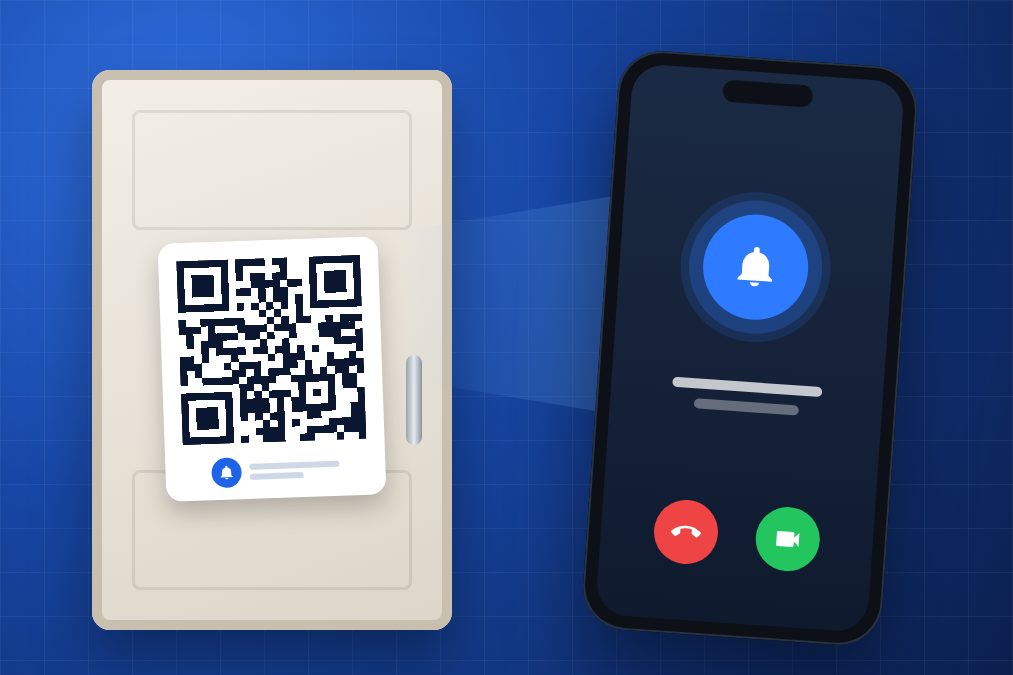
A QR code on your door can do the same job for free. That is exactly what Qoorbell does:
- Create your doorbell in the Qoorbell app or on the web. It takes about 30 seconds.
- Print the QR poster the app generates for you and stick it on your door, gate or reception desk.
- Your visitor scans it with their phone camera — no app, no account, no download.
- Your phone rings with a video call or a chat, wherever you are: at home, at work or on holiday.
No wiring, no drilling, no batteries, and no hardware to steal. Because the QR code is just a pointer to your doorbell, you can turn it off, schedule quiet hours or share it with the people you live with, all from your phone.
The same idea works far beyond the front door: a building entrance with a doorbell for every apartment, a shop or office reception, your car's windscreen ("you're blocking me"), your pet's collar or the luggage you don't want to lose. Whoever finds it can reach you without ever seeing your phone number.
Frequently asked questions
Are QR codes free to create?
Yes. A static QR code costs nothing to create and works forever. You only pay if you choose a dynamic code from a service that charges for it.
Do QR codes expire?
Static codes never expire. Dynamic codes stop working when the service behind them is cancelled or switched off.
Can I make a QR code on my phone?
Yes. On Android, Chrome's Share menu creates a QR code for any page, and many free apps create Wi-Fi and contact codes. Always test the result before printing it.
Is a QR doorbell safe?
Visitors never see your phone number or address details, and you decide whether to answer. You can block a visitor, pause the doorbell or turn it off at any moment.
Try it
Making a QR code for a link takes seconds. Making one that rings your phone takes barely more. Create your free QR doorbell and print it today — it's free, with nothing to install on your door.